HELP & FAQ
Get Help Using Kindred
We're here to help you get the most out of Kindred. Browse by topic and learn how you can make full use of Kindred for your team and clients. If you can't find what you're looking for, your Choose Life team is just a message away.
Getting Started
Learn the basics of Kindred, how to set up your account, and where to begin on day one.
CONVERSATIONS
Learn how to send messages, respond to clients, and keep all your conversations in one place.
SCHEDULER & REMINDERS
See how scheduling works, how reminders go out, and what happens when a client doesn't show.
CLIENTS & TAGS
Find out how to manage your client list, add contacts, and use tags to track each journey.
CLIENT JOURNEYS
See how Kindred tracks each client from first contact through follow-up and outcomes.
DASHBOARDS & REPORTS
Understand your data, read your dashboard, and pull reports for your team or board.
Getting started
What is Kindred?
Kindred is a platform built by Choose Life Marketing that gives your pregnancy center a clear, connected picture of every woman's journey — from the moment she clicks your ad or fills out a form, all the way through scheduling, communication, and follow-up. Instead of piecing together information from multiple spreadsheets or systems, Kindred brings it all into one place so your team always knows what's happening and what to do next.
Kindred is built around five core things your center needs to do well:
Track inquiries — See every person who reaches out, where she came from (ad, form, text message, etc.), and when she came in.
Communicate — Text clients directly from Kindred, respond to messages, and keep all conversations in one place.
Schedule and remind — Manage appointments and send automatic reminders so fewer people slip through.
Follow up automatically — Set up automations that send messages when someone no-shows, after an appointment, or at key points in her journey.
See the full picture — Your dashboard connects marketing, communication, scheduling, and outcomes so you always know what's working.
Where should I start?
Here's a simple order to get oriented:
-Open the Dashboard — get a feel for the layout and what data is showing.
-Go to Conversations — check for any incoming messages that need a response.
-Visit Clients — search for a name you recognize to see what a contact record looks like.
-Check Calendars — confirm upcoming appointments are showing correctly.
Once those feel familiar, your team will be ready to start using Kindred day to day.
What should we set up before going live?
Your Choose Life team handles most of the technical setup during onboarding. Before you start using Kindred with real clients, make sure these are confirmed:
-Your staff members have been added and can log in
-Appointment types and durations are correct for your center
-Reminder messages have been reviewed and approved
-Your texting line (A2P) has been verified and is active
-Your Olive or Chloe chat is connected and flowing into Kindred
Your Choose Life team will confirm each of these during your walkthrough. If anything looks off after you go live, reach out right away.
How do I add my team so they can log in?
To add a staff member:
-Go to Settings in the left-hand menu
-Click My Staff, then Add User
-Enter their first name, last name, and email address
-Click Next, then use Copy Permission from the reference user your Choose Life team provided
-Click Save — they'll receive an invitation email automatically
What is A2P?
A2P stands for Application-to-Person — it's the carrier registration system required before you can send automated text messages through Kindred. Registration gives your center permission to text contacts who've opted in.
Your Choose Life team handles setup on this for you.
CONVERSATIONS
Compose, search, and changing your inbox view
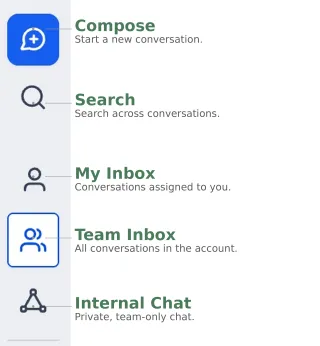
On the conversations page, you'll see the left sidebar where you can click the blue button to compose a new conversation. Below that you can click the search icon to search for words or phrases across conversations.
Below those, Kindred splits conversations into three separate inboxes, and choosing the right one matters:
Team Inbox — every conversation in the account. This is where most staff should work from by default, since it shows everything coming in regardless of who it's assigned to.
My Inbox — only the conversations assigned specifically to you. Useful once your team starts assigning ownership and you want to focus on your own queue.
Internal Chat — a separate space for talking with your own team. It isn't tied to any client conversation at all, and not every center uses it — some prefer Slack or email for internal talk, and that's fine.
Switch between them using the icons on the far-left sidebar. Internal Chat is easy to confuse with an Internal Comment (covered below), but they're not the same tool — Internal Chat is a standalone conversation with a teammate, while an Internal Comment is a private note left inside one specific client's thread.
How do I sort and filter what messages I'm seeing?
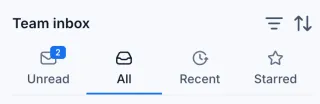
Once you've picked an inbox, use the tabs across the top to narrow the list:
Unread — messages you haven't opened yet
All — everything in that inbox
Recent — conversations with activity in the last few days
Starred — anything you've flagged to come back to later
You can also do a more in-depth search by sorting and filtering your conversations.
To do this, click the filter icon next to your inbox name to open the Filters panel on the right side of the screen. This lets you build custom rules instead of relying on the default tabs:
Filter Type — choose what to filter by (tag, assigned user, channel, read status, and more)
Is — the condition applied to that filter
Value — the specific thing you're matching (a tag name, a team member, etc.)
AND / OR — if you stack more than one filter row, this controls whether a conversation has to match all of them or just one
Next to the filter icon is the sort icon, which just flips your list between newest-first and oldest-first.
How do I respond to a client, and how do I leave a note for my team without them seeing it?
Replying is simple — open the conversation, type in the message box, and hit send. It goes out as a text to the client's phone directly.
Leaving an internal note takes one extra step:
-Use the Channel Switcher on the left side of the message box to switch from the current message channel (email, sms, etc) to Internal Comment
-Type your note — tag a teammate with @ if needed
-Send or schedule it like normal
Internal Comments are only visible to your team, never the client. Double-check the composer is set to Internal Comment before typing anything you wouldn't want a client to see.

Details and scheduling from the inside the conversations page
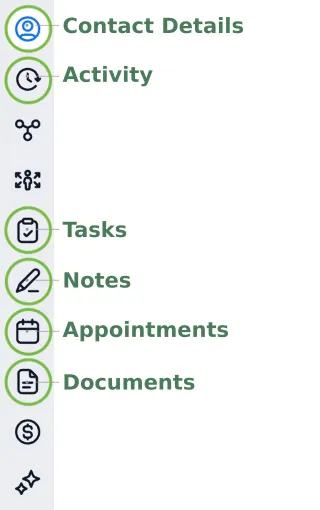
Every client conversation and record has a column of icons on the right side — this is where you get the full picture of who she is and what's happened with her, without digging through separate pages. Highlighted are the sections you'll use most often in your Kindred account.
Contact Details — her name, phone, email, who owns this client (the staff member responsible for her), who's following (other staff who can see and help without owning it), her tags, and any custom fields your center tracks.
Activity — the single fastest way to answer "how did she find us?" It's a timeline showing the form she filled out, the ad or channel that brought her in, and every appointment change along the way.
Tasks — assign a specific follow-up action tied to her, like "call back Thursday"
Notes — longer internal context that isn't tied to one specific message or conversation
Appointments — view her upcoming and past appointments, or book a new one right from this panel — no need to leave the page.
Documents — any files or paperwork attached to her record
SCHEDULER & REMINDERS
What is the Scheduler for?
This is where you manage every appointment your center has coming up — booking, viewing, rescheduling, and canceling — all tied to the same client record you see in Conversations. Appointments booked here (whether staff enters them manually or a client books through a form, Olive/Chloe, or your website) show up automatically in that client's Appointments tab, so nothing lives in two places.
How do I view and manage my calendar?
Switch between calendar views (day, week, month) depending on how far ahead you want to see
Each appointment type your center offers (intake, ultrasound, follow-up, etc.) can have its own duration, buffer time, and assigned staff member — this is set up during onboarding, but your Choose Life team can adjust it any time your services change.
Click into any appointment to see the client's info, reschedule, or cancel — you don't have to leave the Scheduler to make changes.
If your team syncs Google or Outlook calendars, existing personal events block availability automatically, so you won't get double-booked.
How do I sort and filter what messages I'm seeing?
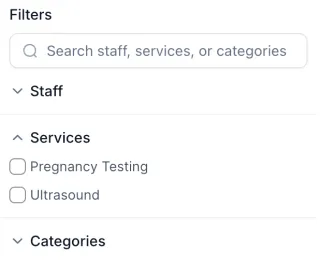
On the right side of the Scheduler, you'll find a Filters panel with three ways to narrow what you're looking at:
Search — jump straight to a specific staff member, service, or category by typing instead of scrolling
Staff — expand this to show or hide appointments by team member, useful when multiple staff share one calendar view
Services — expand this to check off specific services (like Pregnancy Testing or Ultrasound) so you only see appointments of that type.
Combine Staff and Services together when you need something specific — like "only Ultrasound appointments on Lynn's calendar this week."
How do automatic reminders work?
Every appointment can trigger a reminder sequence without anyone on your team lifting a finger:
-A confirmation goes out right after booking
-Reminders typically fire at set intervals before the appointment (commonly 24 hours and 2 hours out) — the exact timing and wording were reviewed and approved during your onboarding walkthrough
-Reminders can go by text, email, or both, depending on what your center chose
What happens when someone doesn't show up?
No-shows can trigger their own automatic follow-up — for example, a rescheduling text sent shortly after the missed appointment time.
This follow-up is separate from your standard reminders and is meant to recover the appointment, not just log that it was missed.
Your team can still see the no-show reflected on the client's record, so nothing gets lost even if she doesn't respond to the follow-up.
What if I use a different scheduler?
You don't have to give up your existing scheduler to use Kindred. We currently integrate with:
-eKyros
-WayCool
-Acuity
If your center uses one of these, appointment data syncs into Kindred automatically — so you keep booking the way your team already knows, while still getting the full client picture (communication, activity, and appointment history) in one place.
We're actively evaluating additional scheduler integrations. If you use something not listed here, let your Choose Life team know — that helps us prioritize what to build next.